



-
Finger Writing Turning into an Eraser? Adjust Sensitivity for Smooth Writing!
Teachers, have you ever experienced this “frustrating” moment while using the IWB? You are writing with your finger, but suddenly the system mistakes it for an eraser, and the notes you just wrote disappear instantly! 😫
Don’t worry, there’s nothing wrong with your finger or the screen! This usually happens because the “Finger Threshold” is set too high (too large). The system mistakenly thinks your finger contact area is large enough to be a palm or an eraser, triggering the erase function.
You can fix this perfectly by simply “re-calibrating” the finger recognition size:
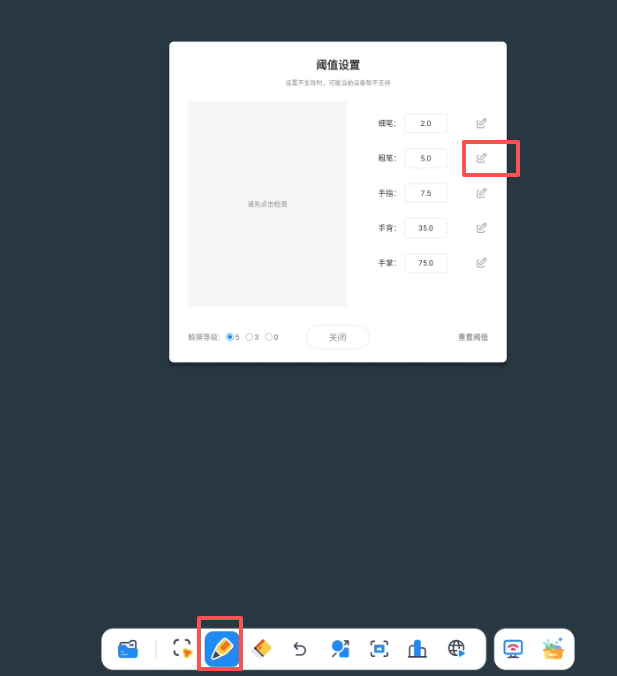
Find the “Writing” or “Finger” icon on the toolbar and Long Press it to open the threshold setting window ⚙️.
Find the row with the finger icon and click the “Edit” button next to it ✏️.
Follow the prompt and press the finger you usually use for writing inside the Recognition Area on the screen. Let the system “re-learn” the size of your fingertip 👆.
Once recognized, click the “Save” button next to the finger icon, and then confirm to Save Threshold.
All done! After re-calibration, the system will accurately distinguish between “writing” and “erasing.” Give it a try! ✨
Sorry, there were no replies found.
Log in to reply.
 English
  简体中文
简体中文