



-
Can’t Write with Multiple Fingers? Turn Off IWB Gestures First!
Teachers, have you ever faced this awkward moment during class interaction: you invite two or three students to the board to solve problems together, but the screen “fails” to cooperate? It only detects one person’s writing, while others’ strokes are broken or unresponsive? 🤔
Don’t call tech support just yet! This is usually because the IWB “Gesture” function is enabled. To prevent accidental touches, the system prioritizes gesture recognition, which limits multi-touch writing capabilities.
To enable “Multi-user Writing,” you just need to adjust three simple settings:
Switch Mode: On the IWB bottom menu, switch to “Writing” mode ✏.

Disable Gestures: Click the “Writing” option at the top, go to “Gesture” settings, and Turn Off the “Use Gestures” toggle 🚫.
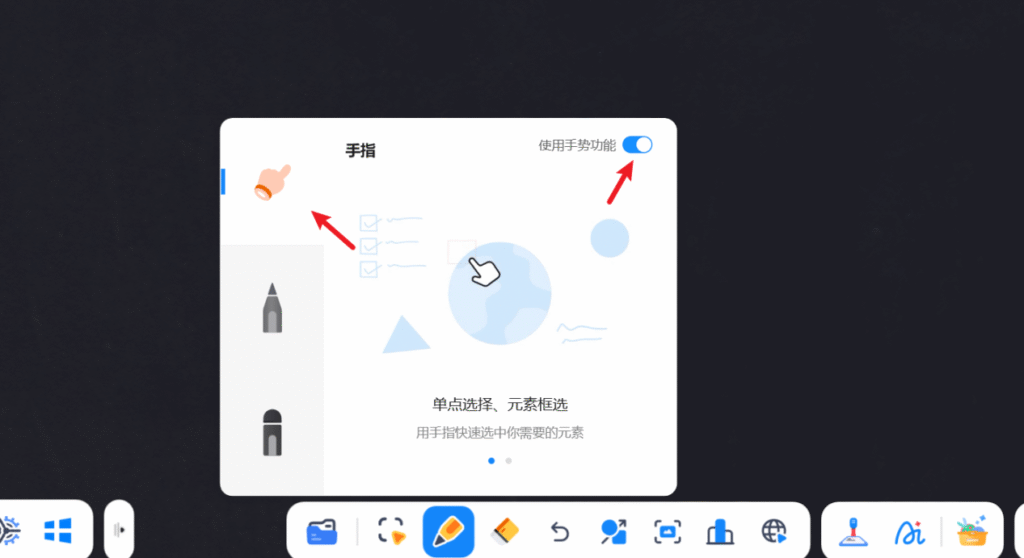
Enable Multi-Writing: Once gestures are off, you can control the writing mode freely.
Click the “Enable Multi-finger Writing” button to start multi-user mode. Now everyone can write smoothly at the same time!
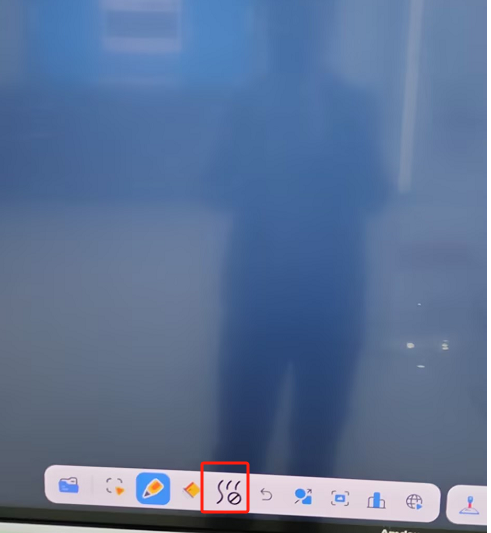
(Conversely, if you need single-user focus, simply click the button again to disable it.)
Once set, your multi-student interactive sessions will run without a hitch. Give it a try! ✨
Sorry, there were no replies found.
Log in to reply.
 English
  简体中文
简体中文