



-
App Installed but Won’t Open? Your Antivirus Might Have “Eaten” Key Files!
Teachers, have you ever encountered this confusing situation: Magic Cube installs successfully, and the desktop icon is right there, but when you click it, absolutely nothing happens? 🤔
Don’t reinstall your operating system just yet! It’s usually not a bug in the app. It’s likely that your antivirus software (like 360 Total Security) is being over-protective and has “cleaned up” Magic Cube’s core configuration files by mistake. 🚫 (For the tech-savvy: It usually deletes AmdoxRubik.dll in version 2.1 or AmdoxRubik.LocalWeb.dll in older versions)
To fix this permanently, you not only need to reinstall the app but also give it a “pass.” Here is how to do it (using 360 Antivirus as an example):
Step 1: Reinstall to Recover Files. Temporarily exit/disable your antivirus, then reinstall Magic Cube to bring back the missing files.
Step 2: Add to Trust List (Whitelist). Open 360 Antivirus after installation:
Click on “Trojan Scan” 🛡.
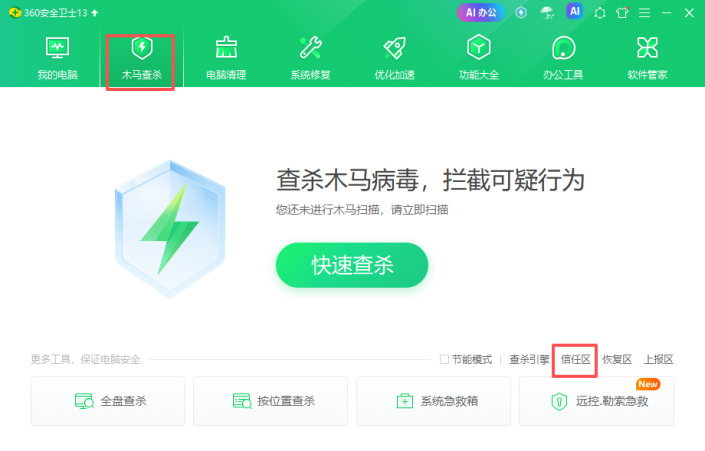
Find and click on “Trust Zone”.
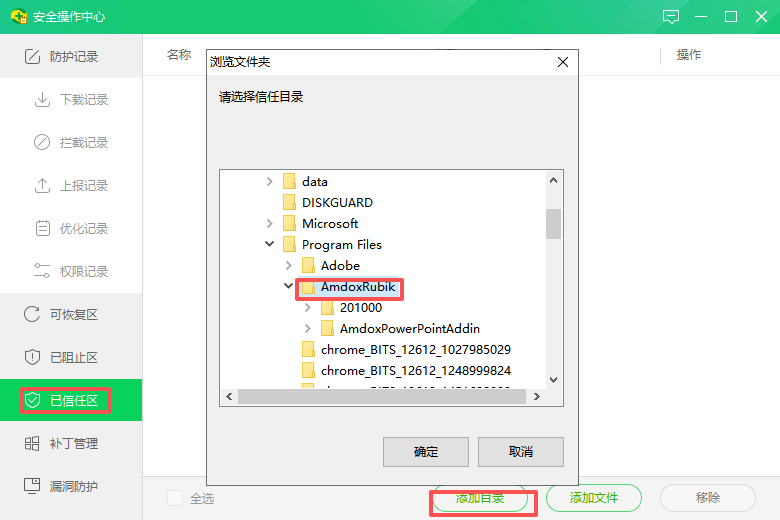
Select “Add Directory” and add the entire Magic Cube installation folder to the list.
Once added to the Trust Zone, the antivirus will stop “attacking” the friendly software, and it will launch instantly every time! 🚀
Sorry, there were no replies found.
Log in to reply.
 English
  简体中文
简体中文