



-
The Ultimate Guide: Build Your Personalized Magic Cube Workspace Step-by-Step!
Many teachers have computer desktops that look like a “starry night”—so many icons that finding one app requires a magnifying glass! 😵 High-efficiency teachers, however, use the Magic Cube “App Center” to keep everything organized.
It’s more than just a launcher; it’s an expandable, all-in-one teaching command center. Here are 2 steps to build your dream workspace:

📌 Step 1: Pin High-Frequency Apps for Instant Access Click “All” on the homepage to enter the App Management page. Here, you’ll find essentials like DeepSeek, Smart Homework, and other powerful tools. Just click “Edit” to add your daily must-haves to the homepage. Next time, your muscle memory will do the clicking for you!


🔗 Step 2: Seamless Integration of Third-Party Platforms Beyond the built-in tools, you can manually add your favorite third-party platforms. Whether it’s your school’s management system or a go-to resource website, you can integrate them here for one-click access.
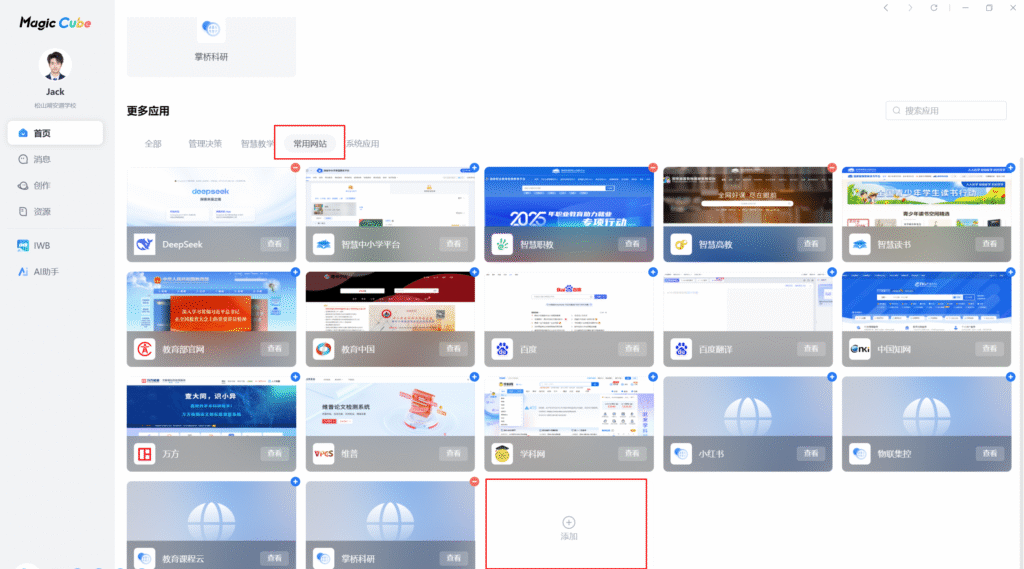

Clear the clutter and move your icons into Magic Cube—you’ll feel much better preparing your lessons! Go give it a try and make your workspace truly work for you.
💬 Interaction: Which three apps are absolutely essential to your teaching workflow? Share your “Must-have Trio” in the comments!
Sorry, there were no replies found.
Log in to reply.
 English
  简体中文
简体中文