



-
Forgot the Lock Screen Password on an Interactive Display? Reset It in 2 Steps — No Factory Reset Needed!
Have you ever walked into class only to realize you completely forgot the lock screen password on the interactive display? I’ve been there — class about to start, screen locked, stress level 100 😵💫
Good news: you don’t need a factory reset or any complicated steps. I fixed it in just 2 simple steps:Step 1
On the lock screen, tap the text “Please enter lock screen password” 7 times in a row, then enter the universal unlock code “0000”.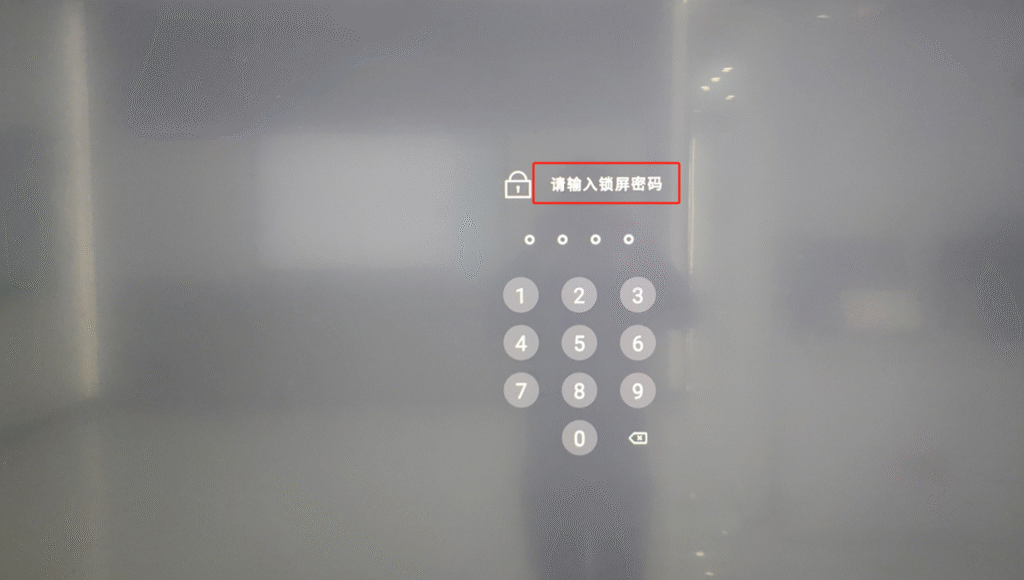
Step 2
Once unlocked, go to Settings → Advanced Settings → Security & Privacy, and set a new lock screen password.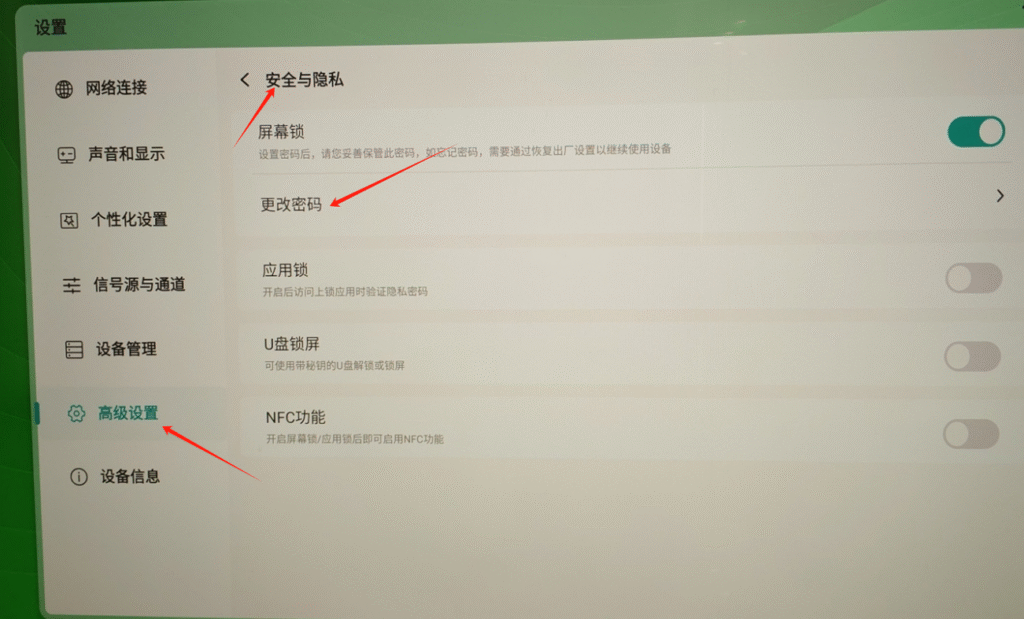
That’s it!
No data loss, no deleted lesson files, no factory reset — super easy and stress-free. 🙌
Sorry, there were no replies found.
Log in to reply.
 English
  简体中文
简体中文